

Team Management is open to Admins only. Billing Admins and Members cannot assign or unassign seats. Admins and Billing Admins can buy Enterprise capacity from Account → Billing using Add seats. Billing Admins cannot be assigned seats themselves and do not consume your allocation. See Enterprise seat true-up for the confirmation and billing details.
Seat assignment methods
Trial mode
This mode is only active during the trial. In trial mode, users are automatically provisioned with a seat when they raise a PR in a repository where CodeRabbit is installed. During an eligible primary trial, activity on an existing PR can also assign an available trial seat to a human author who doesn’t have one yet. Pushing commits, commenting, reopening the PR, or marking it ready for review all count. This never adds seats to the subscription or assigns seats to bots. Manual assignment restrictions still apply. Listing an author inignore_usernames doesn’t stop them from getting a trial seat, as described in Auto-approval.
After the trial ends, organizations automatically transition to manual approval mode.
Manual approval
In this mode, admins can continue assigning seats directly from Team Management, or Workspace Team Management for Enterprise SSO workspaces. A developer does not need to submit a request first. Developer requests provide an additional way to ask for a seat. Eligible users without a seat can request a review seat from the free summary on their private-repository PRs. Public and open-source PRs do not show this request action.Auto-approval
In this mode, users are automatically provisioned seats when they raise a PR in a repository where CodeRabbit is installed. On subscriptions billed through GitHub Marketplace, auto-approval doesn’t assign seats; admins assign them from Team Management. For paid subscriptions, a pull request triggers automatic assignment only when it’s opened, including when it’s opened as a draft. Activity on an existing pull request doesn’t assign a seat: pushing commits, commenting, reopening a closed pull request, or marking a draft ready for review leaves an unseated author unseated. Unless free-tier reviews are turned off withenable_free_tier, CodeRabbit posts a free summary on those pull requests with a note that the author has no seat, or that the organization has reached its seat limit if every seat is in use. Newly provisioned users can open a new pull request to trigger automatic assignment. Other users should ask an administrator to assign a seat from Team Management. The available-seat exception during a trial is described in Trial mode.
With auto-approval, using the IDE extension or the CLI can also assign a seat to a member of your Git organization, outside pull requests. This doesn’t apply in Enterprise SSO workspaces.
When inactive seats are released
CodeRabbit releases inactive seats only when every purchased seat is in use and a developer without a seat opens a new pull request. Seats aren’t released on a schedule, so while seats remain available, nobody loses a seat, however long they’ve been inactive. Seats are never released in manual approval mode, during a trial, or on GitHub Marketplace subscriptions. Enterprise SSO workspaces follow their own rules, described in Enterprise SSO workspaces. When this happens, CodeRabbit immediately releases the seat of every member with no activity for 30 days or more, including admins, bots, and manually assigned seats, and assigns one of the released seats to the pull request author. Any other released seats stay unassigned and remain part of your purchased seat count. The 30-day period isn’t configurable. Activity means CodeRabbit activity on pull requests the member authored:- Opening a pull request, pushing commits to it, or any person commenting or chatting with CodeRabbit on it counts.
- Being assigned a seat counts.
- Reviewing other people’s pull requests and using the IDE extension or CLI don’t count.
- Opening, pushing to, or commenting on a pull request during a trial isn’t recorded and doesn’t count after the trial ends, but the time a seat was assigned during the trial does.
enable_free_tier. An Admin or Billing Admin can add Enterprise capacity, as described in Enterprise seat true-up.
To keep a teammate’s seat regardless of activity, or to avoid unexpected seat purchases, use manual approval.
Request a review seat
In CodeRabbit Cloud, you can request a seat when your selected organization uses manual seat assignment, your membership is eligible for a seat, and you do not already have one. The organization must have an active paid subscription, including a subscription scheduled to cancel at the end of its current term. Requests are unavailable during trials, after the subscription ends, or while automatic seat assignment is enabled.Request from a pull request
On an eligible private-repository PR, the free-summary notice identifies the author who needs a seat. On GitHub, select Request a review seat for @author. The request is always for the PR author, even if another person selects the checkbox. On GitLab, Bitbucket, and Azure DevOps, use the Request a review seat link to open CodeRabbit. Sign in as the developer who needs the seat and check the selected organization before submitting the request. The GitHub notice also includes an Open in CodeRabbit link. Public and open-source PRs do not display a seat-request checkbox or link. If a request fails, the GitHub checkbox remains available to try again.Request from the web app
- Sign in to CodeRabbit and select the organization where you need a seat.
- In the developer sidebar, under Reviews, select Request a review seat.
- Check the organization name in the dialog, then select Request a review seat to notify its administrators.
Pending requests and reminders
After submitting, the dialog shows Seat request pending, your last request date, and when you can request again. Requests remain pending until a seat is assigned. Submitting again within seven days returns the same pending request without sending another notification. After seven days, select Request again to notify administrators again without creating a duplicate request. CodeRabbit also schedules one reminder after three weekdays from the initial request, calculated in UTC and skipping weekends but not holidays, if the request remains pending and eligible. Requesting again does not restart this reminder. Notifications go to the organization’s recorded CodeRabbit admins, billing admins, applicable workspace admins, and current billing contact. If no admins are recorded, CodeRabbit uses the billing contact when available. Saving a request does not guarantee that an email has reached an inbox; admins can also find pending requests in Team Management.Approve a seat request
- Open Team Management and select the Seat requests tab. Its badge shows the pending count.
- Open a request to review the developer, person who requested the seat, organization, request dates, and source PR when available.
- Select Approve. If another paid seat is needed, review the estimated cost, currency, seat quantity, proration, and billing timing before confirming. An available seat can be assigned without an additional charge.
Managing seat assignments
To change your seat assignment mode, navigate to Team Management in the CodeRabbit dashboard and click the settings icon next to Invite Billing Admin. From this menu, you can switch between auto-approval and manual approval modes. Click Confirm to save your changes.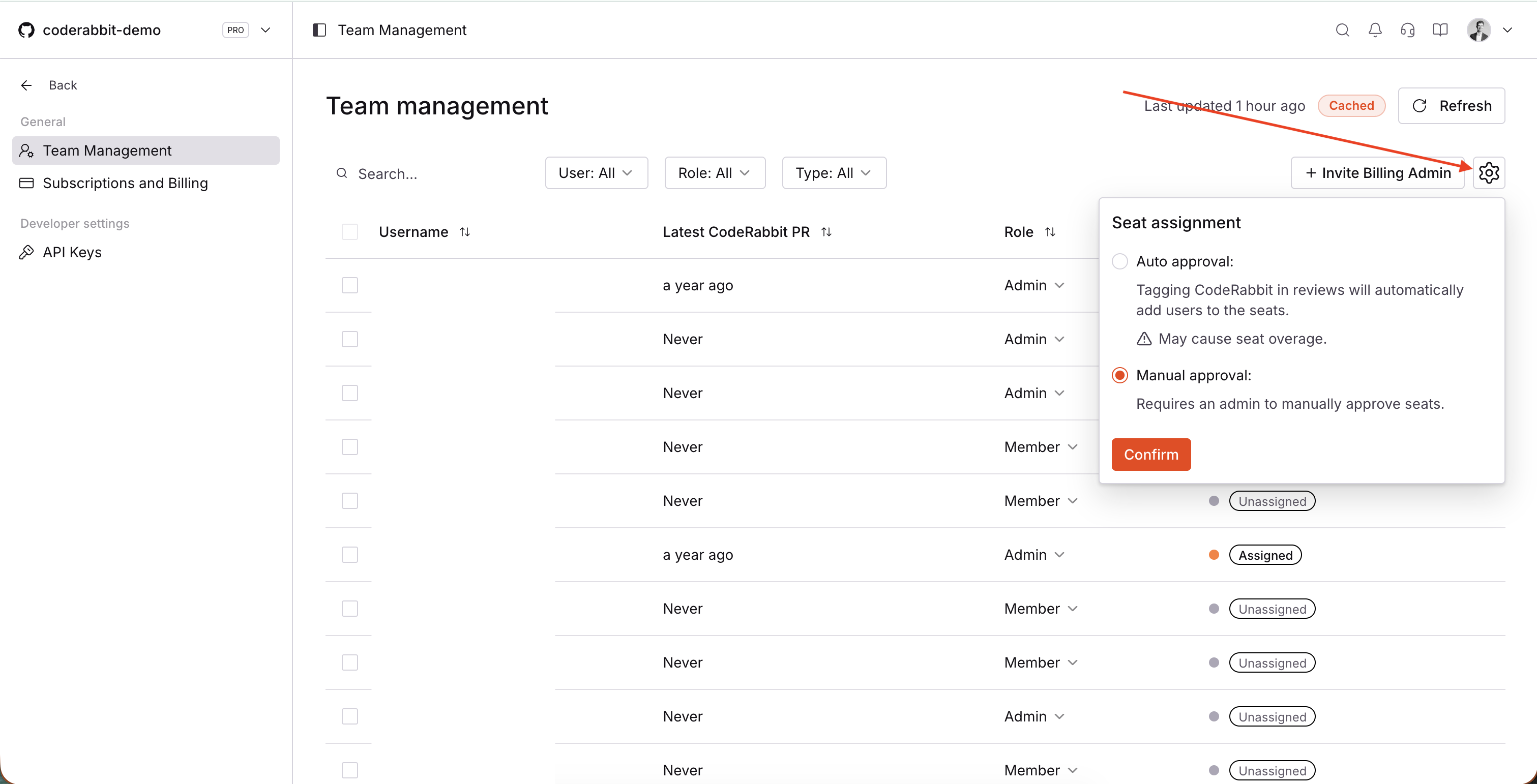
Seat assignment settings showing auto-approval and manual approval options
Enterprise customers can assign custom roles in addition to the built-in Admin, Member, and Billing Admin roles. For details on creating and managing custom roles, see Custom roles and permissions.
Enterprise SSO workspaces
Enterprise SSO workspaces manage seats from Workspace Team Management. Open the seat assignment settings to switch between Automatic and Manual modes. In Automatic mode, a member is assigned a seat when they open a pull request while purchased seat capacity remains. Once all purchased seats are in use, CodeRabbit does not increase the subscription’s seat count automatically, and the pull request author is treated as ineligible for the normal review flow. Automatic seat assignment resumes after seat capacity is freed, such as through reallocation, or an Admin or Billing Admin explicitly increases the purchased seat count.How Enterprise SSO seats are counted
Every pull request author is identified by a Git identity, such as a GitHub username, GitLab username, Bitbucket account, or Azure DevOps identity. That Git identity must be covered by a seat to receive paid PR reviews. In Workspace Team Management, CodeRabbit assigns the seat to a member entry. A member entry can be:- An IdP member: A person who signed in through SSO or was provisioned from your identity provider through SCIM.
- A Git-only member: An entry created for a Git identity that has pull request activity but is not yet linked to an IdP member.
When estimating seats, count each separate Git identity unless you know that
the identities will be linked to the same IdP member.
How IdP members, Git identities, and seats relate
The Git identity that opens a pull request determines who needs review access. The member entry that contains that Git identity determines where CodeRabbit assigns the seat.- If the Git identity is linked to an IdP member, the seat is assigned to that IdP member and covers every Git identity linked to the member.
- If the Git identity is not linked to an IdP member, CodeRabbit represents it as a Git-only member. That entry can receive a seat so the Git identity can receive paid PR reviews.
An IdP member provisioned through SCIM initially appears in Workspace Team
Management without a seat. SCIM does not automatically link existing Git
identities to the new member. An admin must link the appropriate identities
through the UI or API.
Choose a seat assignment mode
In Automatic mode, CodeRabbit assigns a seat to the member entry containing a Git identity when that identity opens a pull request, up to the purchased seat count. If all seats are taken, an Admin or Billing Admin must explicitly buy more capacity before automatic assignment can use additional seats. In Manual mode, admins assign seats to IdP members or Git-only members individually from Workspace Team Management. Individual seat assignment controls are disabled while Automatic mode is on. Workspace Team Management does not assign consumed seats to billing admins. If a billing admin already has a seat, admins can still unassign it. For role-editing details, see Workspace roles.Pending unassignment
When you unassign a seat from a user on a standard monthly paid subscription, the seat is marked as “Pending unassignment” and stays active until the end of the billing cycle. Enterprise true-up seats are released for reuse when unassigned, while their contracted quantity and charges remain unchanged.How “Pending unassignment” works
- Delayed unassignment: When you unassign a seat from a standard monthly subscriber, it remains active until the end of your current billing cycle
- Continued access: Users with “Pending unassignment” seats retain full CodeRabbit access until the billing cycle ends
- Automatic cleanup: At the end of the billing cycle, all “Pending unassignment” seats are automatically unassigned, and the users will lose the seat
This “Pending unassignment” behavior applies only to standard monthly paid subscriptions. Annual subscriptions and Enterprise true-up seats are excluded.
Billing implications
“Pending unassignment” seats are still counted as active seats for billing purposes during the current cycle. You will continue to be charged for these seats until they are automatically unassigned at the end of your billing period. For seats added through Enterprise true-up, Unassign releases the seat for another teammate. It does not reduce the contracted seat count, reverse the prorated charge, or end the commitment through the current contract term. Contact your Customer Success Manager to discuss a reduction. See Unassign a true-up seat. This approach ensures you get full value from your subscription while giving you the flexibility to adjust your team composition as needed.Troubleshooting
Existing users having their seats removed
With auto-approval, CodeRabbit releases every seat with no activity for 30 days or more when all seats are in use and a developer without a seat opens a new pull request. See When inactive seats are released for what counts as activity and how to keep a seat.New users in auto-approval mode getting new licenses despite open seats
Bots and external users with seats count toward your used seats, but they’re displayed separately from regular Git provider organization members. Using the IDE extension or the CLI can also add a seat. See When inactive seats are released.Users without seats still receiving CodeRabbit reviews on their PRs
Users without paid seats to CodeRabbit still receive free-tier CodeRabbit reviews unless theenable_free_tier setting is disabled.
Why does a user still have access after I unassigned their seat?
For standard monthly paid subscriptions, unassigned seats are marked as “Pending unassignment” and remain active until the end of the current billing cycle. This means users retain full CodeRabbit access during this period. See the Pending unassignment section for more details on this behavior.When will a “Pending unassignment” seat become available for reassignment?
“Pending unassignment” seats are automatically unassigned at the end of your billing cycle. Once the billing cycle ends, the seat becomes fully available for reassignment to a new user. Until then, the seat remains allocated to the original user.What’s next
Billing and changing plans
Access billing history, change plans, and adjust seats
Manage team roles
Control who can access CodeRabbit and manage administrative settings